Best Free PDF Tools Online: Complete Guide (2026)
Managing PDF files shouldn't require expensive software or subscriptions. This comprehensive guide reviews the best free PDF tools available online in 2026, with a focus on privacy, speed, and functionality.
Why Use Online PDF Tools?
Advantages of Browser-Based PDF Tools:
- ✅ No software installation required
- ✅ Works on any device (Windows, Mac, Linux, mobile)
- ✅ Always using the latest version
- ✅ No storage space needed on your device
- ✅ Access from anywhere with internet
The Privacy Problem with Traditional PDF Tools
Most free online PDF tools have a dirty secret: they upload your files to their servers.
Why This Matters:
- 🔴 Your confidential documents pass through unknown servers
- 🔴 Files may be stored temporarily (or permanently)
- 🔴 Data could be accessed by third parties
- 🔴 Processing times depend on internet speed
- 🔴 Requires uploading and downloading large files
The Solution: Client-Side Processing
Modern web technology (WebAssembly) enables a better approach: processing files entirely in your browser.
Benefits:
- ✅ 100% Privacy: Files never leave your device
- ✅ Instant Processing: No upload/download delays
- ✅ Works Offline: After initial page load
- ✅ No File Size Limits: Your browser, your rules
- ✅ Completely Free: No subscriptions or accounts
Essential PDF Tools Everyone Needs
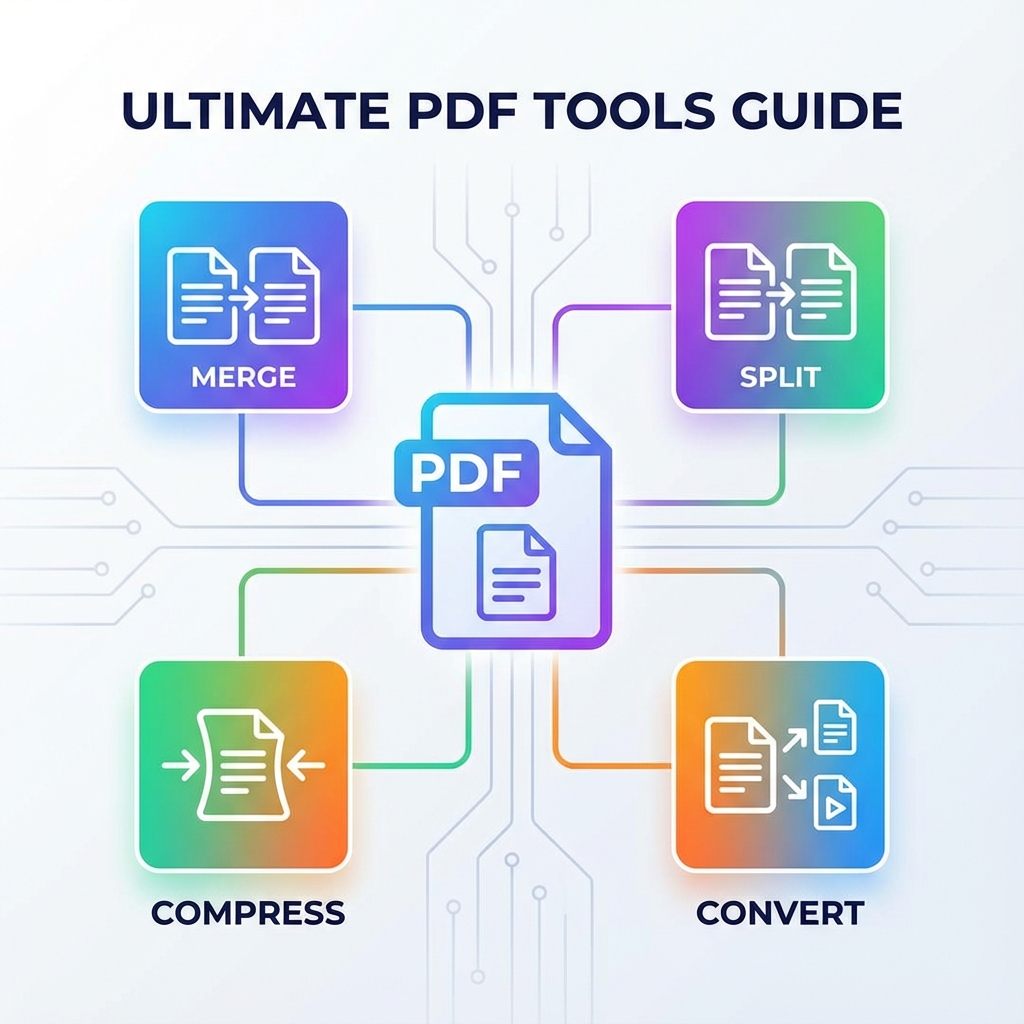
1. Merge PDF Files
What it does: Combines multiple PDFs into one document
Use cases:
- Combining reports and presentations
- Consolidating contracts and agreements
- Merging scanned documents
- Creating comprehensive portfolios
2. Split PDF Files
What it does: Extracts specific pages or divides PDFs into separate files
Use cases:
- Extracting relevant sections
- Creating separate files per chapter
- Removing unnecessary pages
- Sharing specific pages only
3. Compress PDF Files
What it does: Reduces file size without losing quality
Use cases:
- Email attachments (under size limits)
- Website uploads (faster loading)
- Cloud storage (save space)
- Mobile sharing (faster transfers)
4. Convert PDF Files
What it does: Converts PDFs to images or images to PDFs
Use cases:
- Creating thumbnails
- Extracting diagrams
- Converting scans to PDF
- Making presentations
5. Add Watermarks to PDFs
What it does: Adds text or image watermarks for protection
Use cases:
- Copyright protection
- Document identification
- Confidentiality markers
- Brand identification
6. Add Page Numbers
What it does: Automatically numbers pages in your PDF
Use cases:
- Professional documents
- Academic papers
- Legal documents
- Presentations
Comparison: Desktop Software vs. Online Tools
| Feature | Desktop Software | Online Tools (Server) | Online Tools (Browser) |
|---|---|---|---|
| Installation | Required | None | None |
| Updates | Manual | Automatic | Automatic |
| Storage Space | Large (500MB+) | None | None |
| Privacy | High | Low | Highest |
| Speed | Fast | Slow (upload/download) | Fastest |
| Offline Use | Yes | No | After page load |
| Cost | $50-300/year | Free with ads | Free |
| File Limits | None | Usually 100MB | Browser memory |
How to Choose the Right PDF Tool
Consider these factors:
1. Privacy Requirements For sensitive documents (legal, medical, financial), only use tools that process files in your browser.
2. Internet Availability If you have unreliable internet, browser-based tools that work offline are ideal.
3. File Size Large files (100MB+) process faster with client-side tools (no upload/download time).
4. Frequency of Use Daily users might prefer desktop software; occasional users benefit from online tools.
5. Device Flexibility Need to work from multiple devices? Online tools are perfect.
Advanced PDF Features
OCR (Optical Character Recognition)
Convert scanned documents to searchable, editable text. Essential for digitizing paper archives.
Digital Signatures
Add legally binding electronic signatures to contracts and agreements.
Form Filling
Fill out PDF forms digitally instead of printing and scanning.
Annotation and Commenting
Add notes, highlights, and comments for collaboration.
Password Protection
Secure sensitive PDFs with password encryption.
PDF Security Best Practices
When working with PDFs online:
1. Use Client-Side Tools Always choose tools that process files in your browser for maximum security.
2. Verify HTTPS Ensure the website uses HTTPS (padlock in address bar) for encrypted connections.
3. Don't Upload Sensitive Files Never upload confidential documents to server-based tools.
4. Clear Browser Cache After processing sensitive files, clear your browser cache.
5. Use Private Browsing For extra security, use private/incognito mode when handling confidential PDFs.
Common PDF Tasks and Solutions
Email Attachment Too Large
Solution: Compress the PDF to reduce file size by 50-70%.
Need to Extract Specific Pages
Solution: Split the PDF to extract only the pages you need.
Combining Multiple Documents
Solution: Merge PDFs into a single professional package.
Protecting Your Content
Solution: Add watermarks to discourage unauthorized use.
Converting Scans to PDF
Solution: Use JPG to PDF to create searchable documents.
Mobile PDF Tools
All our tools work perfectly on mobile devices:
iOS (iPhone/iPad):
- Works in Safari and Chrome
- Full-screen mode for better experience
- Drag-and-drop file selection
Android:
- Compatible with all modern browsers
- File picker integration
- Share directly from apps
Frequently Asked Questions
Q: Are free online PDF tools safe? A: Tools that process files in your browser (client-side) are completely safe. Avoid tools that upload files to servers for sensitive documents.
Q: Can I use PDF tools offline? A: Browser-based tools (using WebAssembly) work offline after the initial page load. Server-based tools require continuous internet.
Q: Is there a limit to file size? A: Server-based tools typically limit files to 100MB. Browser-based tools are limited only by your device memory (usually 1GB+).
Q: Do I need to create an account? A: No! Our tools require no registration, login, or personal information.
Q: How long are files stored? A: With client-side processing, files are never stored anywhere - they exist only in your browser memory during processing.
Conclusion
The best free PDF tools combine powerful features with complete privacy. By using browser-based tools powered by WebAssembly, you get:
- Professional-grade PDF manipulation
- No software installation
- Complete privacy (files never uploaded)
- Instant processing
- Zero cost
Try our suite of free PDF tools and experience the difference of true client-side processing.
Explore all PDF tools View all tools →
Last updated: January 2026
Try Our Free PDF Tools
Process your PDFs securely in your browser. No uploads, completely free.
Found this helpful? Share it with others who might benefit.