How to Compress PDF Files Without Losing Quality (2026)
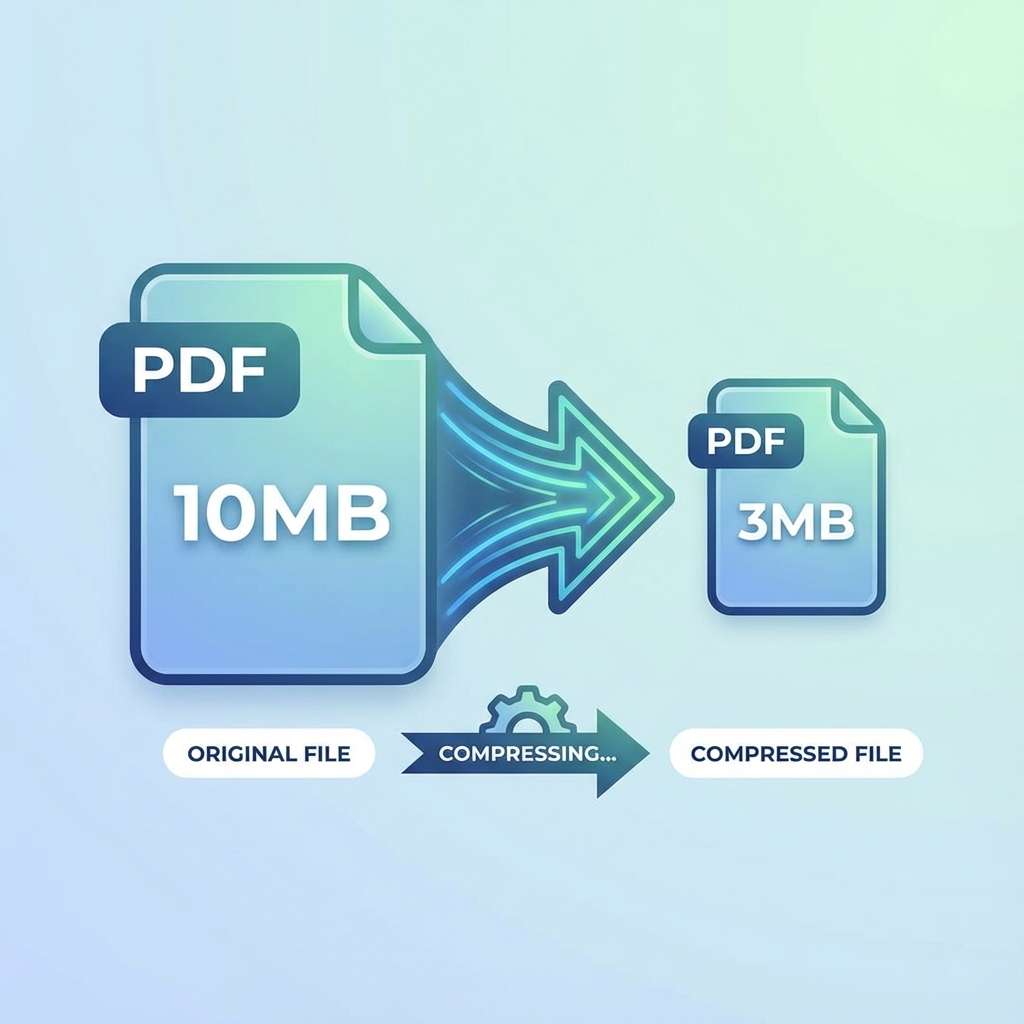
Large PDF files can be a nightmare. They take forever to email, eat up storage space, and often exceed file upload limits. But compressing PDFs doesn't mean sacrificing quality. Here's everything you need to know about reducing PDF file sizes effectively.
Why PDF Files Become So Large
Understanding why PDFs bloat helps you compress them more effectively:
1. High-Resolution Images
Photos and graphics embedded at print quality (300+ DPI) significantly increase file size.
2. Embedded Fonts
Each font adds to the file size, especially custom or non-standard fonts.
3. Unoptimized Scans
Scanned documents often contain full-resolution images of every page.
4. Metadata and Comments
Hidden data, comments, and revision history add unnecessary bulk.
5. Duplicate Objects
Sometimes PDFs contain repeated images or resources that aren't optimized.
How PDF Compression Works
Modern PDF compression uses several techniques:
1. Image Optimization
- Reduce resolution for screen viewing (72-150 DPI)
- Remove unnecessary color profiles
- Apply efficient compression algorithms
2. Object Stream Compression
- Consolidate duplicate objects
- Remove redundant data
- Optimize internal structure
3. Font Subsetting
- Include only characters actually used
- Remove unused font variations
Compress PDFs Without Losing Quality
Our PDF Compressor tool uses smart compression that:
- ✅ Maintains readability for screen viewing
- ✅ Preserves text clarity
- ✅ Optimizes images intelligently
- ✅ Reduces file size by 40-70% on average
- ✅ Processes files entirely in your browser (100% private)
Step-by-Step Compression Guide
Step 1: Select Your PDF Visit the Compress PDF tool and upload your file. No account or login required.
Step 2: Choose Compression Level The tool automatically applies optimal compression that balances size reduction with quality preservation.
Step 3: Download Compressed File Within seconds, download your compressed PDF. Compare the file sizes - you'll often see 50-70% reduction!
When to Compress PDFs
Email Attachments
Most email providers limit attachments to 25MB. Compress large PDFs to stay under this limit.
Website Uploads
Faster page loads mean better user experience and SEO. Compress PDFs before uploading to your website.
Cloud Storage
Save precious cloud storage space by compressing archived documents.
Mobile Sharing
Smaller files transfer faster over mobile connections, saving data and time.
Document Archives
Compress historical documents you need to keep but rarely access.
Compression Best Practices
1. Know Your Audience
- Screen Viewing Only: Aggressive compression is fine (72-100 DPI)
- Occasional Printing: Moderate compression (150 DPI)
- Professional Printing: Minimal compression (300 DPI)
2. Test Before Sharing
Always preview compressed PDFs to ensure quality meets your needs.
3. Keep Originals
Maintain uncompressed backups of important documents.
4. Batch Processing
If you have multiple PDFs to compress, process them together for efficiency.
5. Compress Before Other Operations
Compress first, then merge, split, or add watermarks to optimized files.
Maximum File Size Reductions
Typical compression results by document type:
| Document Type | Original Size | Compressed Size | Reduction |
|---|---|---|---|
| Scanned Documents | 10 MB | 2-3 MB | 70-80% |
| Image-Heavy PDFs | 15 MB | 4-5 MB | 65-75% |
| Text Documents | 5 MB | 2-3 MB | 40-60% |
| Presentations | 20 MB | 6-8 MB | 60-70% |
| Mixed Content | 12 MB | 4-5 MB | 58-67% |
Common Compression Mistakes to Avoid
1. Over-Compression Aggressively compressing PDFs intended for printing results in blurry images and pixelated graphics.
2. Compressing Already Optimized Files Some PDFs are already compressed. Re-compressing offers minimal benefit and may degrade quality.
3. Losing Important Metadata Ensure compression preserves important document properties and metadata you need.
4. Not Testing Print Quality If the PDF will be printed, always test print a page before distributing the compressed version.
5. Using Online Tools for Sensitive Documents Traditional online compressors upload your files to servers. Use browser-based tools for confidential documents.
Alternative Compression Methods
1. Reduce Image Resolution
Before creating PDFs, reduce image resolution to what you actually need:
- Web viewing: 72-96 DPI
- Email: 96-150 DPI
- Home printing: 150-200 DPI
- Professional printing: 300 DPI
2. Convert Images to PDF
If you're creating PDFs from images, use JPG to PDF and optimize images first.
3. Remove Unnecessary Pages
Split your PDF to extract and keep only essential pages.
4. Flatten PDF Layers
If your PDF has multiple layers (common in design files), flattening can reduce size significantly.
Security and Privacy in Compression
When compressing business or personal documents, privacy matters:
Our Compression Tool:
- 🔒 Processes files entirely in your browser
- 🔒 No upload to servers
- 🔒 No data collection
- 🔒 No registration required
- 🔒 Works offline
Unlike traditional online tools that upload your files, our WebAssembly-powered compressor keeps everything on your device.
File Size Limits and Restrictions
Common File Size Limits:
- Email (Gmail, Outlook): 25 MB
- Dropbox: 50 MB via web
- Slack: 1 GB
- WhatsApp: 100 MB
- Most Forms: 10-50 MB
Compress your PDFs to stay within these limits without losing important content.
Measuring Compression Success
Good compression achieves:
✅ 50-70% Size Reduction: Significant savings without quality loss
✅ Clear Text: All text remains sharp and readable
✅ Usable Images: Images suitable for intended purpose
✅ Preserved Links: Internal and external links still work
✅ Maintained Structure: Bookmarks and table of contents intact
Frequently Asked Questions
Q: Will compression remove content from my PDF? A: No! Compression only reduces file size by optimizing how data is stored. No pages or content are removed.
Q: Can I compress password-protected PDFs? A: PDFs must be unlocked before compression. Remove the password, compress, then re-apply password protection if needed.
Q: How many times can I compress a PDF? A: Once is usually enough. Additional compression yields minimal benefit and may degrade quality.
Q: Does compression work on scanned documents? A: Yes! Scanned PDFs often see the biggest size reductions (70-80%) because they contain high-resolution page images.
Q: Will compressed PDFs look bad when printed? A: For screen viewing, no quality loss is noticeable. For professional printing, use moderate compression to preserve detail.
Related PDF Tools
After compressing your PDF, you might also need to:
- Merge PDFs: Combine multiple compressed files
- Split PDFs: Extract specific pages
- Add Watermarks: Protect compressed documents
- Convert PDFs: Change format after compression
Conclusion
PDF compression is essential for modern document management. The key is using smart compression that reduces file size while preserving quality for your specific needs.
Our browser-based compressor offers the perfect balance: significant size reduction, no quality loss for screen viewing, and complete privacy through client-side processing.
Ready to compress your PDFs? Start compressing now →
Last updated: January 2026
Try Our Free PDF Tools
Process your PDFs securely in your browser. No uploads, completely free.
Found this helpful? Share it with others who might benefit.