How to Merge PDF Files Online: Complete Guide (2026)
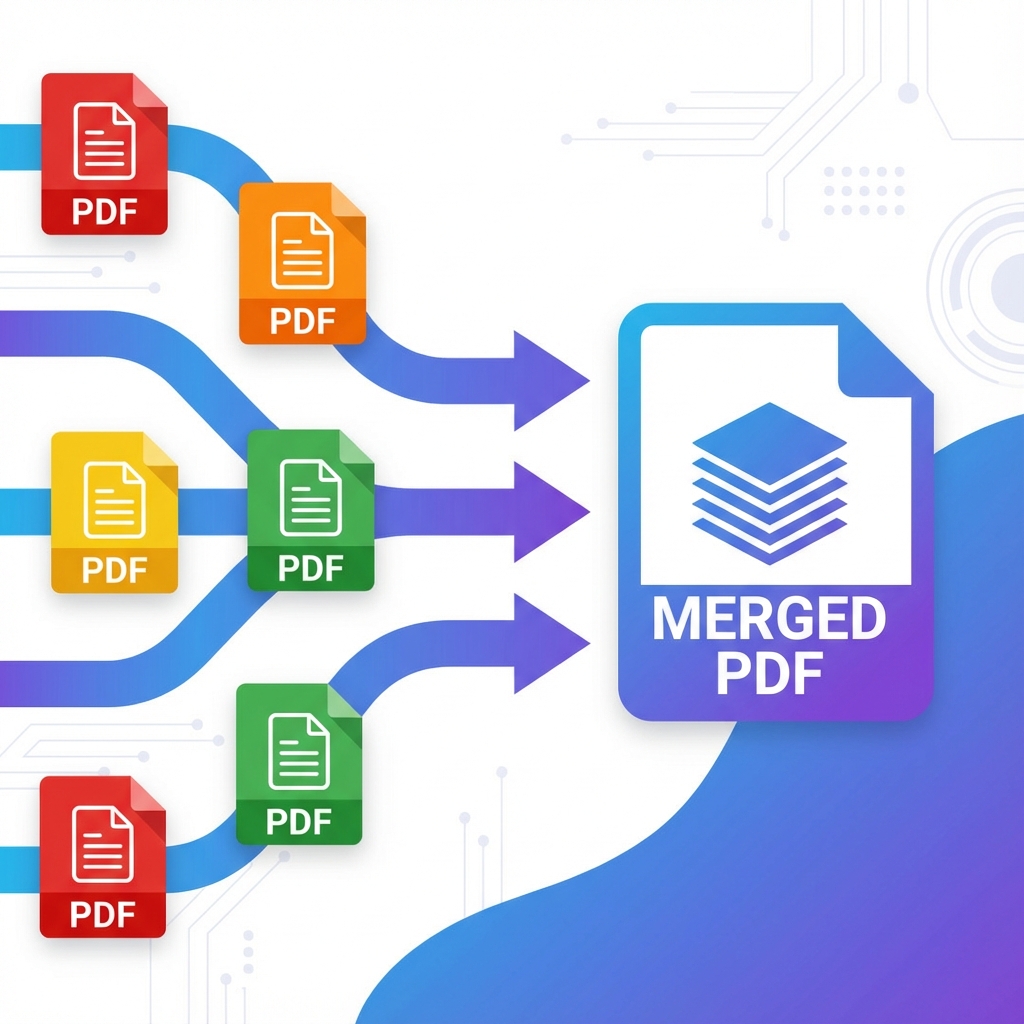
Merging PDF files is one of the most common document management tasks. Whether you're combining reports, consolidating contracts, or organizing scanned documents, knowing how to merge PDFs efficiently can save you hours of work.
Why Merge PDF Files?
Before diving into the how-to, let's understand why merging PDFs is so important:
- Professional Documentation: Combine multiple related documents into a single, professional package
- Easy Sharing: Send one file instead of multiple attachments
- Better Organization: Keep related information together
- Reduced File Count: Simplify your document management
- Print Efficiency: Print multiple documents in one go
The Best Way to Merge PDFs: Client-Side Processing
Traditional PDF merging tools upload your files to a server, which raises privacy and security concerns. Our Merge PDF tool uses cutting-edge WebAssembly technology to process files entirely in your browser.
Benefits of Browser-Based Merging:
- ✅ 100% Privacy: Your files never leave your device
- ✅ Lightning Fast: No upload/download time
- ✅ Completely Free: No subscriptions or hidden fees
- ✅ No File Size Limits: Process large files without restrictions
- ✅ Works Offline: No internet required after page loads
How to Merge PDF Files in 3 Easy Steps
Step 1: Select Your PDF Files
Visit our Merge PDF tool and either:
- Click "Choose Files" to browse your computer
- Drag and drop PDF files directly into the upload area
You can select multiple files at once using Ctrl+Click (Windows) or Cmd+Click (Mac).
Step 2: Arrange the Order
The tool displays all selected files in a list. You can:
- Drag and drop to reorder files
- Remove unwanted files by clicking the X button
- Preview file names and sizes before merging
Pro Tip: Files will be merged in the order they appear in the list, so arrange them carefully!
Step 3: Merge and Download
Click the "Process Files" button. Within seconds:
- The tool combines all PDFs using browser-based processing
- A download link appears automatically
- Your merged PDF is ready to use
- Original files remain unchanged on your device
Common Use Cases for Merging PDFs
1. Business Documents
Combine invoices, contracts, and reports into a single professional package for clients or stakeholders.
2. Academic Papers
Merge research papers, citations, and appendices into one comprehensive document for submission.
3. Scanned Documents
Consolidate multiple scanned pages or documents into a single organized file.
4. Job Applications
Combine your resume, cover letter, and portfolio into one PDF for easy submission.
5. Legal Documents
Merge contracts, amendments, and supporting documents for complete legal records.
Tips for Better PDF Merging
1. Check File Order Carefully Always review the order before merging. The sequence matters for page numbers and document flow.
2. Optimize Before Merging If your PDFs are large, consider compressing them first to reduce the final file size.
3. Add Page Numbers After Merging Use our Page Numbers tool to add sequential numbering to your merged document.
4. Keep Backups Always keep copies of original files before merging, especially for important documents.
5. Check Quality Preview the merged PDF to ensure all pages are included and properly ordered.
Merging PDFs vs. Other Formats
Why Not Just Use Word or Google Docs?
- PDFs preserve formatting across all devices
- Professional appearance with consistent fonts and layouts
- Smaller file sizes compared to Word documents
- Universal compatibility - anyone can open a PDF
Security and Privacy
When merging sensitive documents, privacy is paramount. Unlike online tools that upload your files to servers, our browser-based tool:
- Processes everything locally on your device
- Never transmits files over the internet
- Doesn't store any data
- Requires no registration or login
- Works completely offline
Frequently Asked Questions
Q: Is there a limit to how many PDFs I can merge? A: No! Our tool can handle as many PDFs as your browser memory allows. Most users can easily merge 50+ documents.
Q: Will merging reduce PDF quality? A: No. Our tool preserves the original quality of all pages. No compression or quality loss occurs during merging.
Q: Can I merge password-protected PDFs? A: Currently, PDFs must be unlocked before merging. Remove password protection first, then merge the files.
Q: What's the maximum file size? A: There's no hard limit, but very large files (500MB+) may slow down your browser. For best performance, keep individual PDFs under 100MB.
Q: Can I merge PDFs on mobile? A: Yes! Our tool works on all modern mobile browsers, though desktop is recommended for better performance with large files.
Advanced PDF Management
After merging your PDFs, you might want to:
- Split PDFs: Extract specific pages from your merged document
- Compress PDFs: Reduce file size for email attachments
- Add Watermarks: Protect your merged documents
- Convert to Images: Create JPG versions of pages
Conclusion
Merging PDF files doesn't have to be complicated or compromise your privacy. With browser-based tools using WebAssembly technology, you can combine documents securely, quickly, and for free.
Try our Merge PDF tool today and experience the difference of client-side processing. No uploads, no subscriptions, no compromises.
Ready to merge your PDFs? Get started now →
Last updated: January 2026
Try Our Free PDF Tools
Process your PDFs securely in your browser. No uploads, completely free.
Found this helpful? Share it with others who might benefit.